The Thesis theme includes a feature called the Thesis Post Image that lets you associate an image with a post and then resize or crop it to specific dimensions anywhere on your site. While powerful, the built-in workflow can be cumbersome for non-technical users: you must upload an image, copy its URL, close the upload window, and paste that URL into a text field on the post editor. Additionally, Thesis sometimes displays the original full-size image on single post pages or featured listings while using resized thumbnails elsewhere, which can leave oversized images appearing on the site if a user uploads an image expecting automatic resizing.
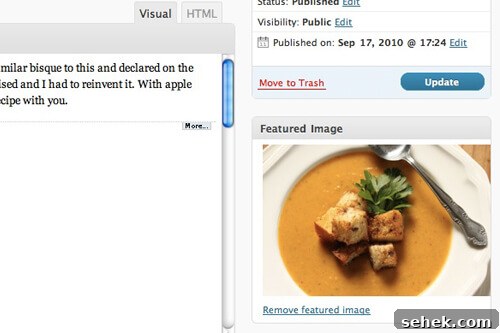
WordPress offers a simpler alternative: Post Thumbnails (also called Featured Images). When enabled, the post editor shows a “Set Featured Image” button that opens the media uploader; you choose or upload an image, click “Use as Featured,” and you’re done—no manual copying or pasting of URLs required.
There are a few trade-offs with WordPress Post Thumbnails. You must declare the thumbnail sizes in your theme’s functions file (for example, custom_functions.php). When you add or change image sizes later, previously uploaded images won’t automatically get new thumbnails—WordPress generates each thumbnail at upload time. To update existing images you’ll need a tool such as the Regenerate Thumbnails plugin to rebuild thumbnails for your media library.
For many client projects this is not a major issue: you can configure the featured-image sizes while building the site and handle regeneration if the client requests new sizes later.
Below is an example of how to enable and use WordPress Post Thumbnails with Thesis. This sample adds theme support for post thumbnails, defines sizes, and outputs the appropriate thumbnail in single posts and in teasers.
[php]/* Image Sizes */
add_theme_support( ‘post-thumbnails’ );
set_post_thumbnail_size( 500, 400 );
add_image_size( ‘teaser-image’, 250, 115, true);
add_action(‘thesis_hook_before_post’,’add_thumbnail’);
function add_thumbnail() {
if(has_post_thumbnail() && is_single()):
echo ‘
’.get_the_post_thumbnail().’
’;
elseif(has_post_thumbnail()):
echo ‘
’.get_the_post_thumbnail().’
’;
endif;
}
add_action(‘thesis_hook_before_teaser’,’teaser_thumbnail’);
function teaser_thumbnail() {
if(has_post_thumbnail()):
echo ‘
’; the_post_thumbnail(‘teaser-image’);echo ‘
’;
endif;
}[/php]
- The first line,
add_theme_support( 'post-thumbnails' ), tells WordPress the theme supports Post Thumbnails. That enables the featured image box in the post editor, which Thesis does not expose by default. set_post_thumbnail_size( 500, 400 )sets the default post thumbnail size. Using two numbers enables “box resize mode,” which scales the image to fit within the specified dimensions without cropping. Choose dimensions that match your design; the example uses a maximum of 500px wide by 400px tall.add_image_size( 'teaser-image', 250, 115, true )registers a custom image size named “teaser-image.” The final argument true enables hard-cropping, so WordPress will generate thumbnails exactly 250×115 pixels.- The add_thumbnail() function is hooked to thesis_hook_before_post and outputs the post thumbnail at the top of the post. It checks whether the post has a thumbnail and whether the current view is a single post: on single pages it displays the image; on other views (like archives or the homepage) it wraps the thumbnail in a link to the single post.
- The teaser_thumbnail() function is hooked to thesis_hook_before_teaser and outputs the teaser-sized thumbnail for teaser displays. If a post has a featured image, it prints the teaser-image size and links it to the full post. Because it uses the teaser hook, this runs only for teaser listings.
Using WordPress Post Thumbnails improves the authoring experience by simplifying how featured images are set, while the thumbnail registration and theme hooks let you control how and where thumbnails appear in Thesis. Remember to regenerate thumbnails if you change sizes after images have already been uploaded.