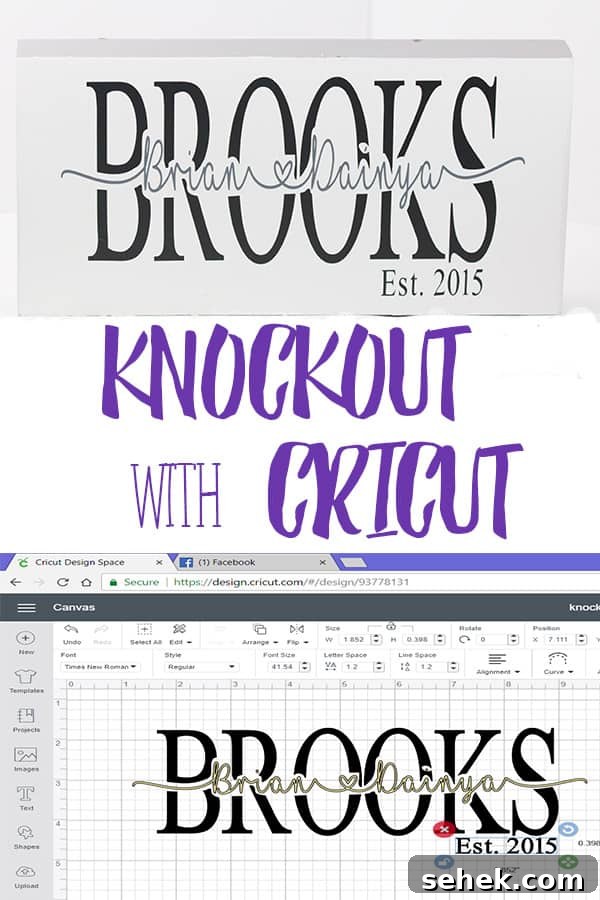
A step by step guide how
to create a last name
knockout image. In a
short amount of time
you can create a custom
gift perfect for any couple.
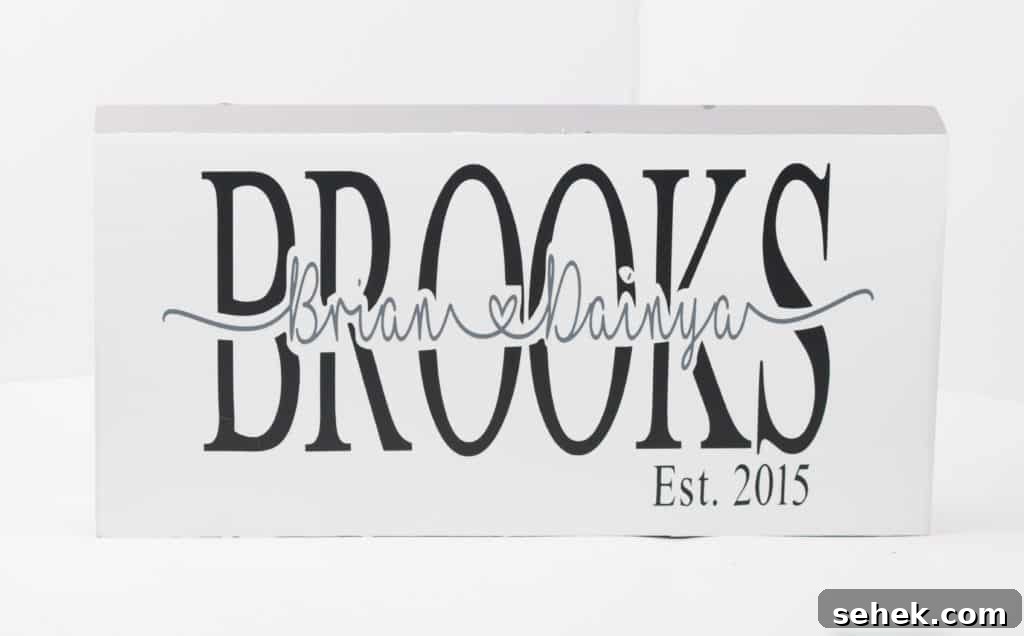
Knockout name signs have become very popular. They make thoughtful wedding, anniversary, housewarming, or Mother’s Day gifts. You can personalize them in many ways—for example using “MOM” as the large background word and adding children’s names in a smaller script. This tutorial shows a clear, step-by-step method to create a last-name knockout image you can use for signs, shirts, stickers, or framed art.
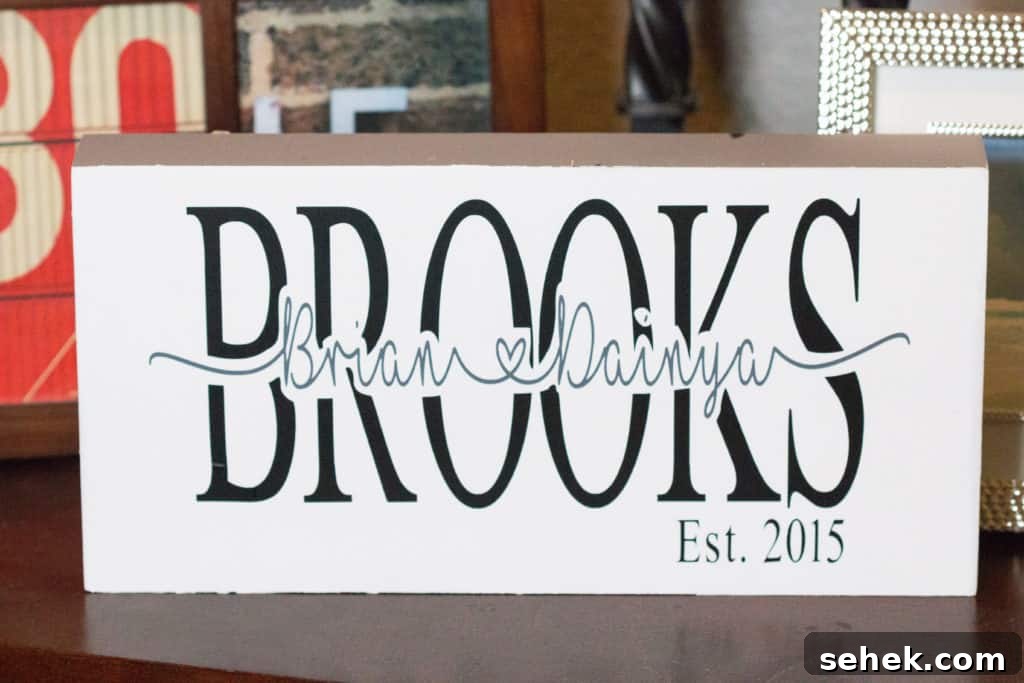
You can customize fonts, sizes, and colors to suit your project. Follow the steps below using your design software (this guide uses Cricut Design Space screenshots) to create a clean knockout effect where first names appear carved out of a bold last name.
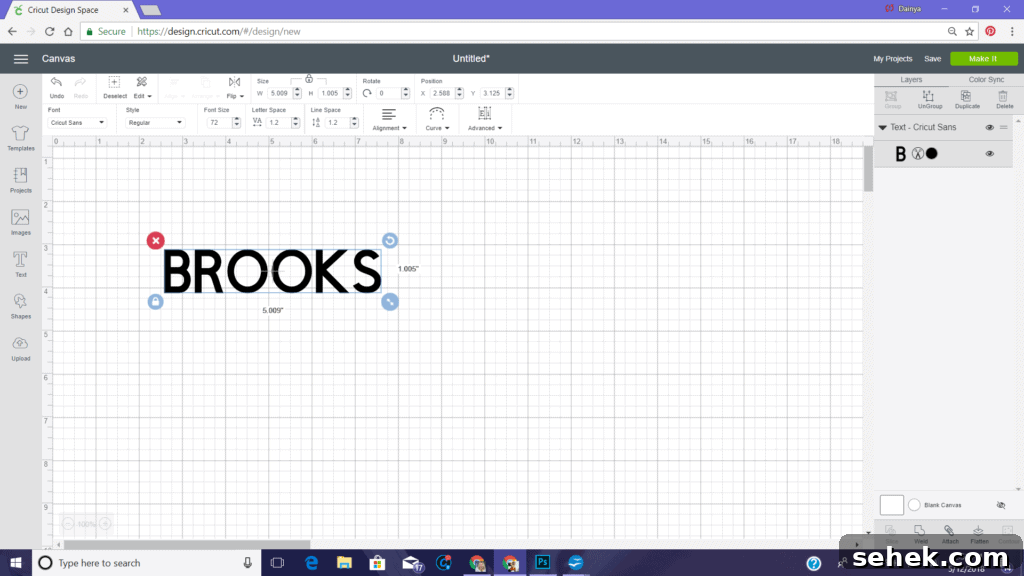
1. Start a new project and add a text box. Type the last name in all caps.
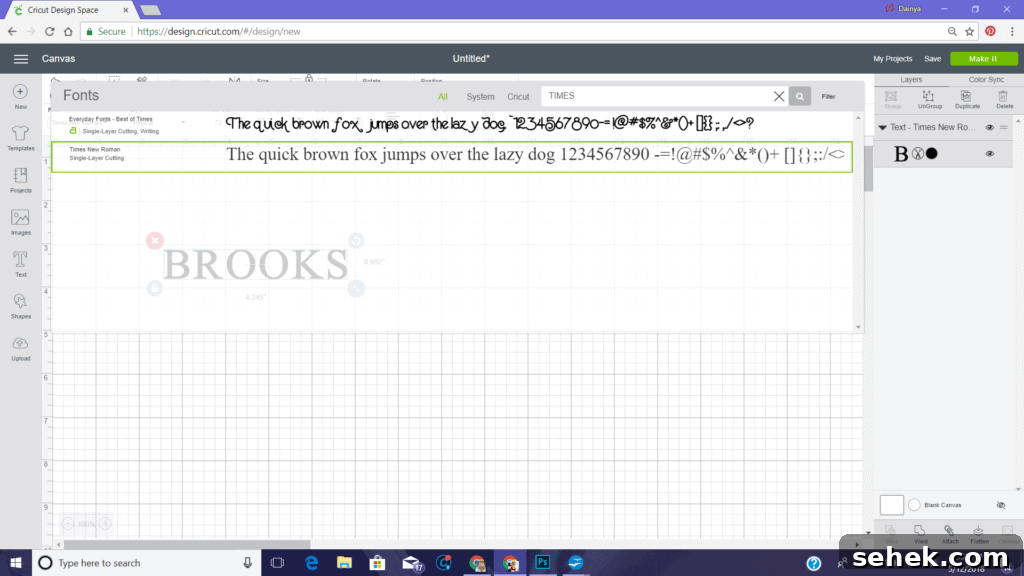
2. Choose a bold serif or slab font for the last name to make the knockout clear. In this example we used Times New Roman.
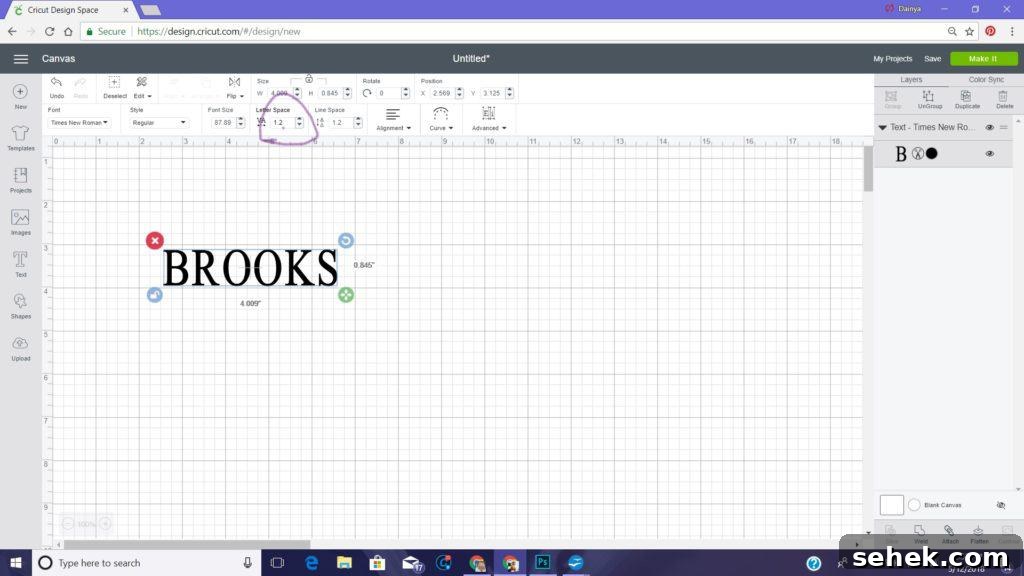
3. Reduce letter spacing so the letters sit closer together. They should be close but not touching.
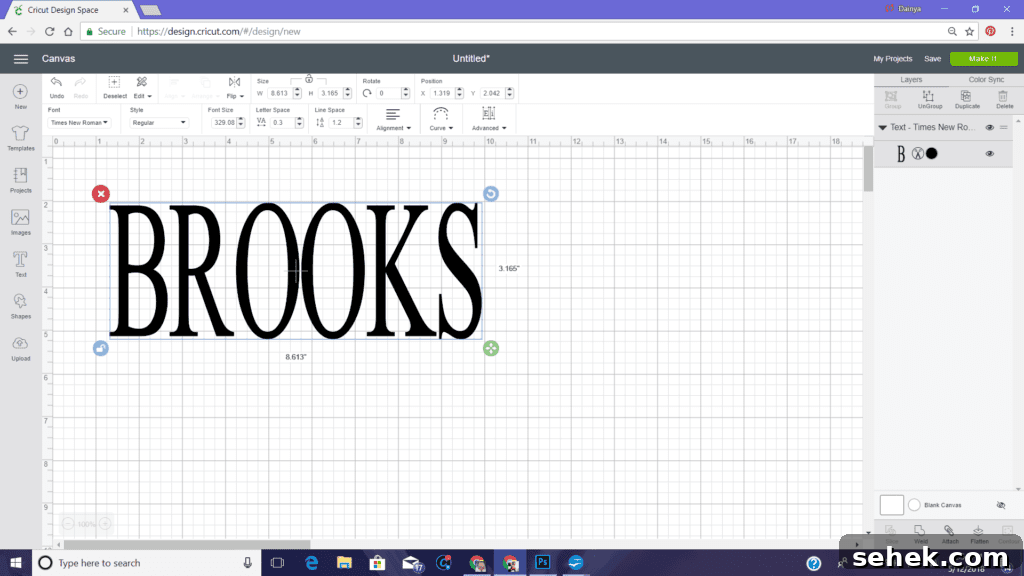
4. Unlock the text box proportions if needed so you can resize height and width independently. Scale the last name to the size you want for your final piece.
5. Add a new text box for the first names. For a decorative script I used the “I love glitter” font. If you don’t have it, download and install it on your computer, then restart Design Space so the font appears.
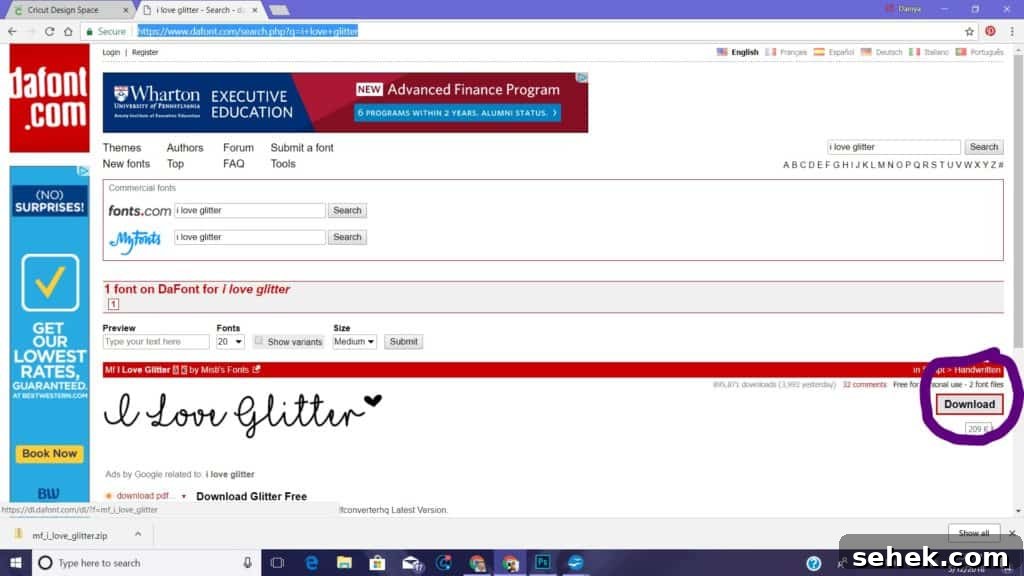
6. After installing a new font, save your project, fully close Design Space, then reopen your project. Create a new text box and choose the installed font.
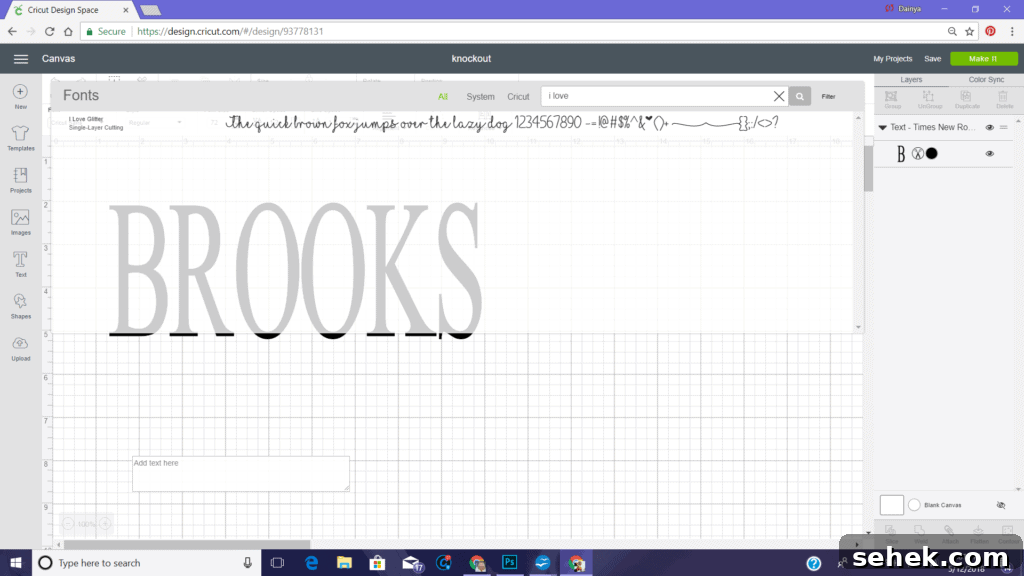
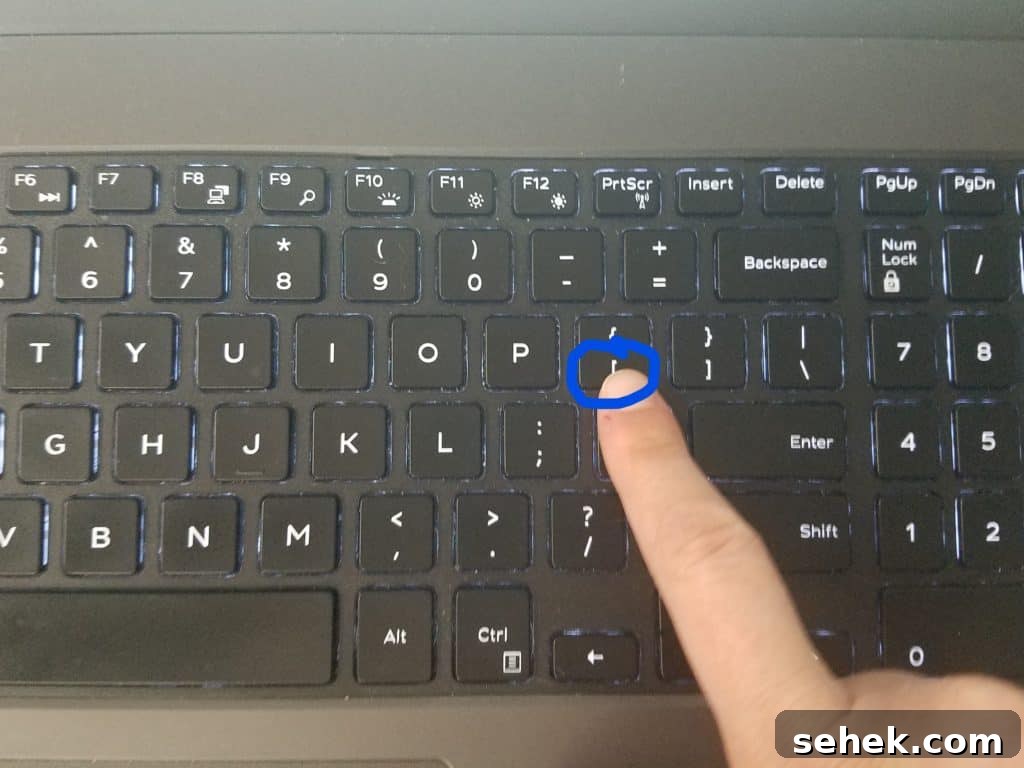
7. Type the first name, then add a heart symbol (Shift + – on many keyboards) and the second name inside brackets or other punctuation you prefer. Adjust letter spacing until letters and connecting swashes touch where you want them to.
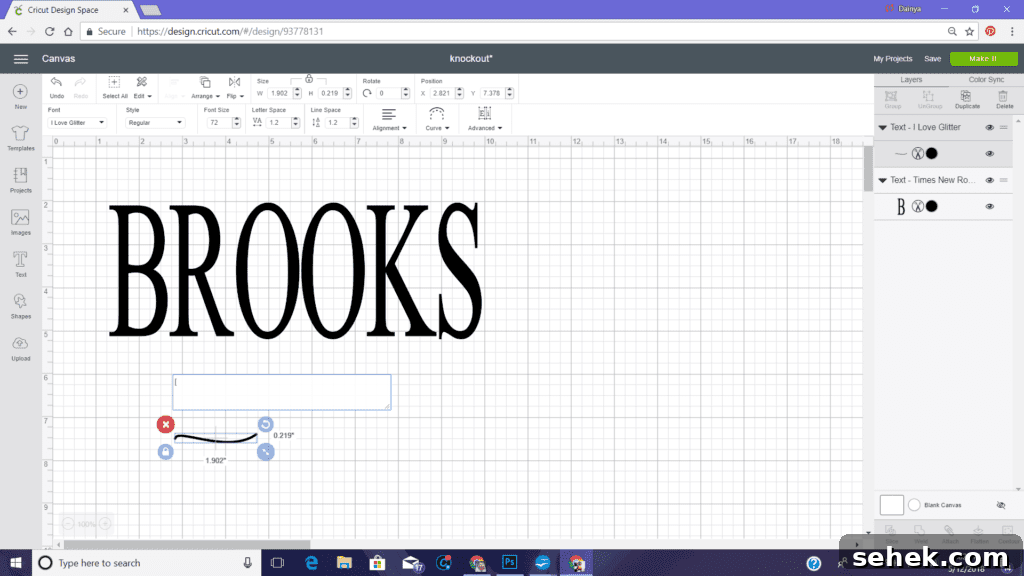
8. Once the script names look right, weld them together so the script becomes a single shape. This prevents gaps when slicing later.
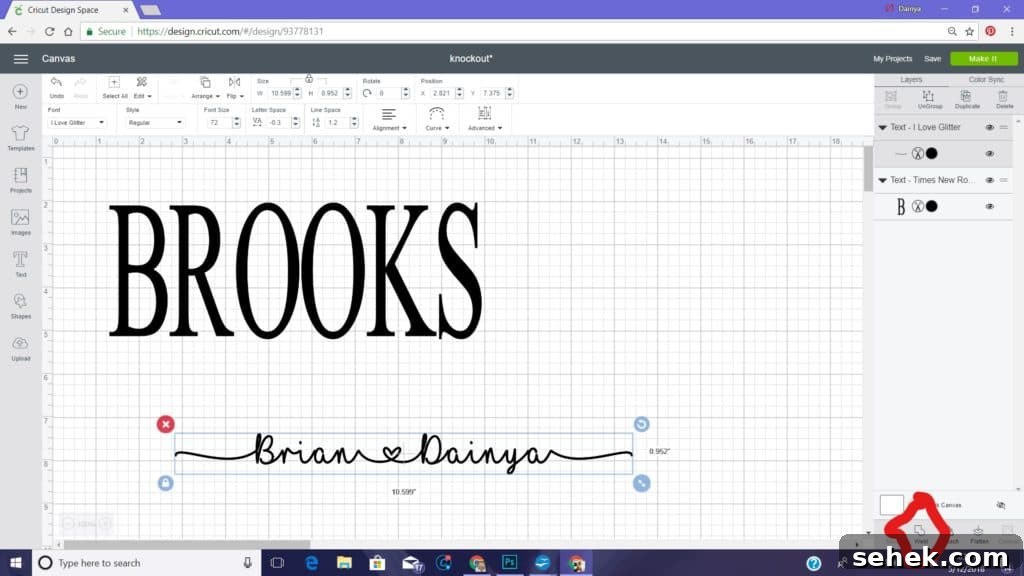
9. Change the color of the names temporarily so they’re easy to see against the last name. Also change the operation type of the names to “Print” (this is a temporary step to create an image you can save).
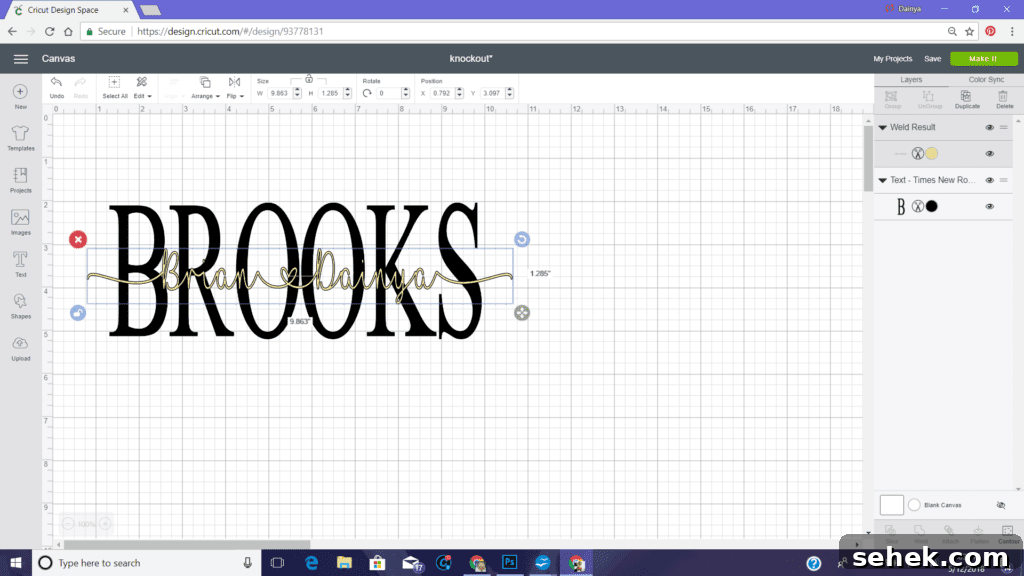
10. Resize the script block so it fits proportionally inside the last name. Position it roughly where you want the knockout to appear.
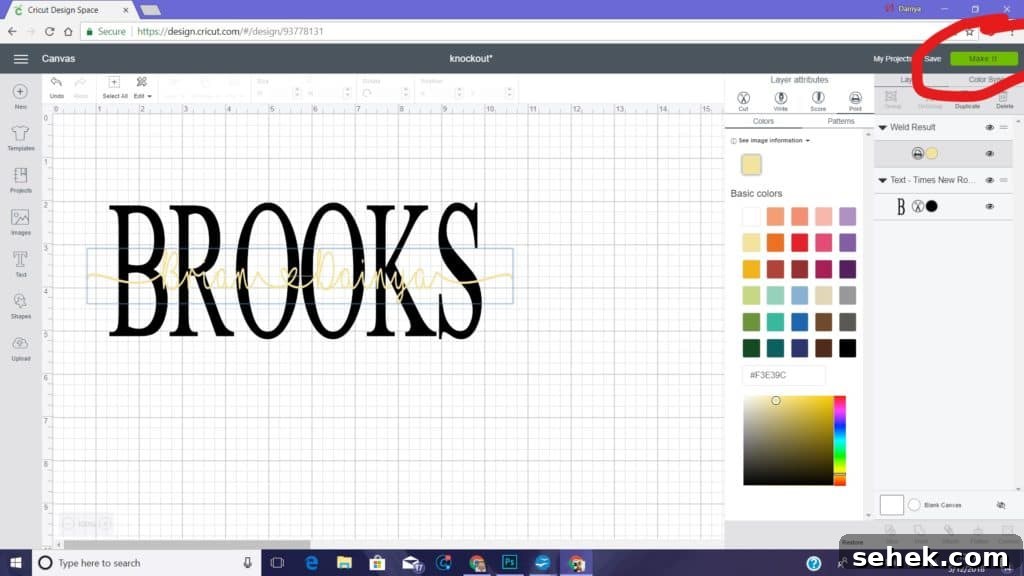
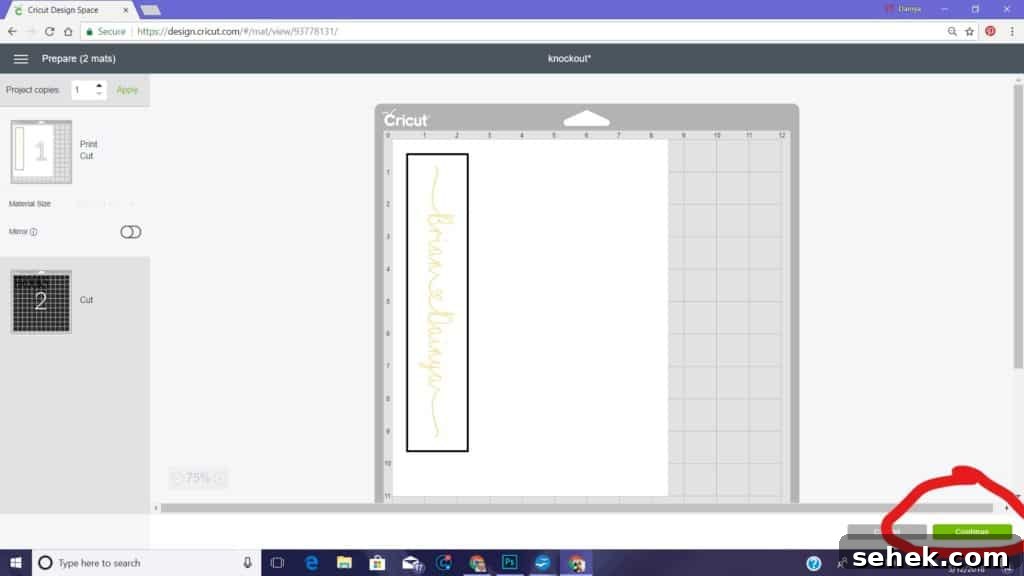
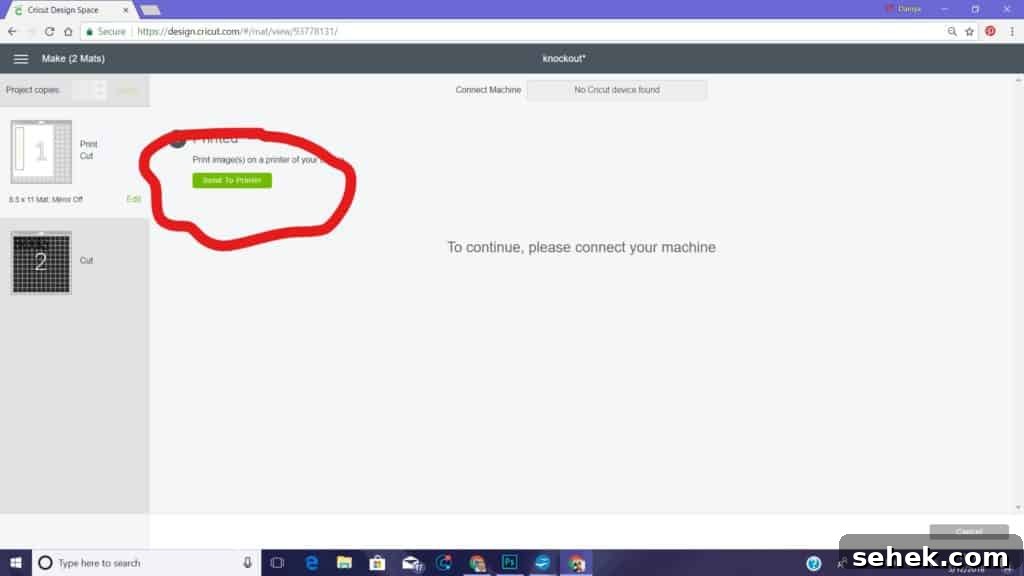
11. Click Make It and select Send to Printer. Ensure bleed is enabled so the exported image has a little extra around edges to avoid white gaps.
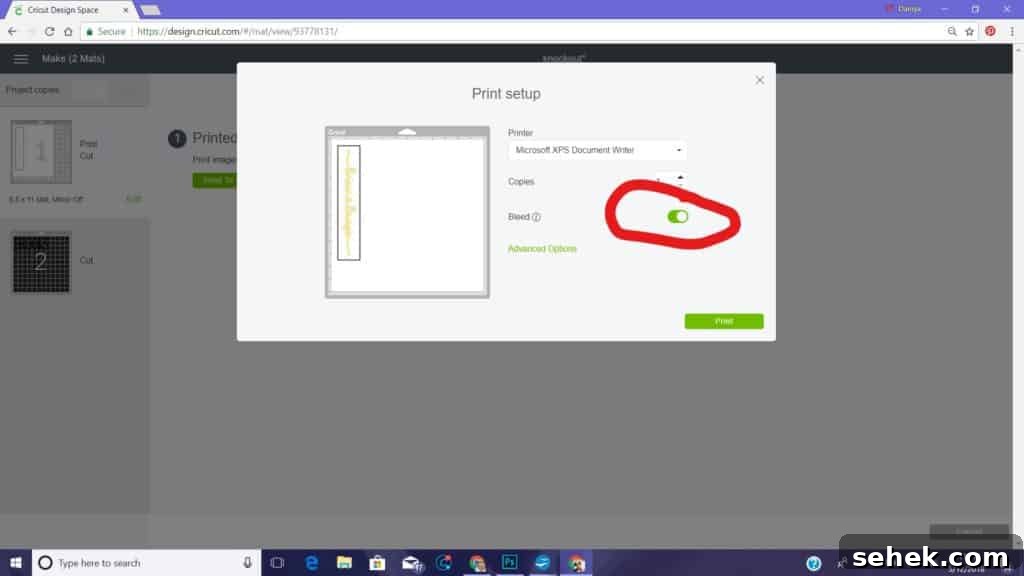
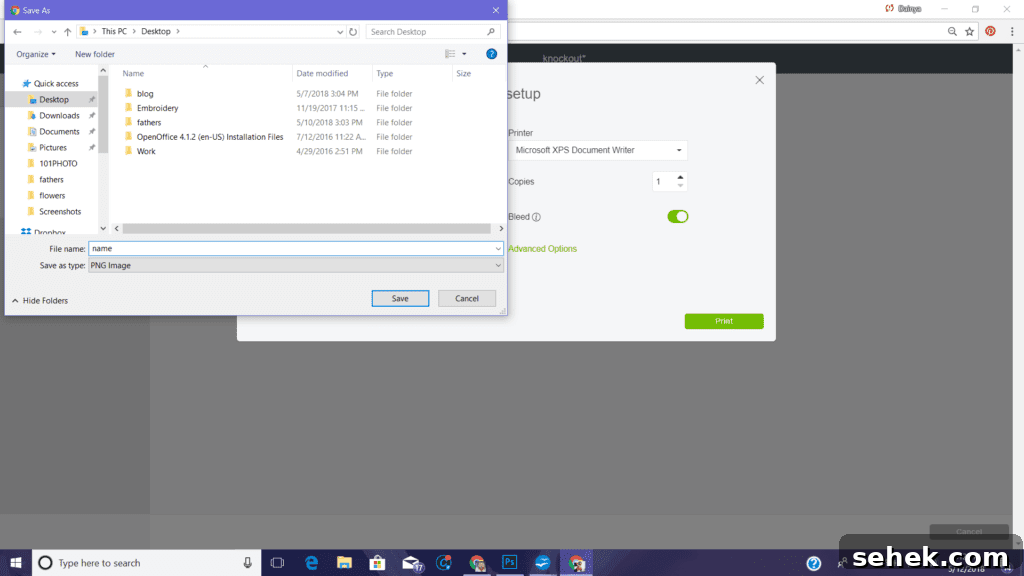
12. Right-click the preview image and choose “Save image as…” to export the printed names image. Save it somewhere easy to find, then cancel the print and return to your canvas.
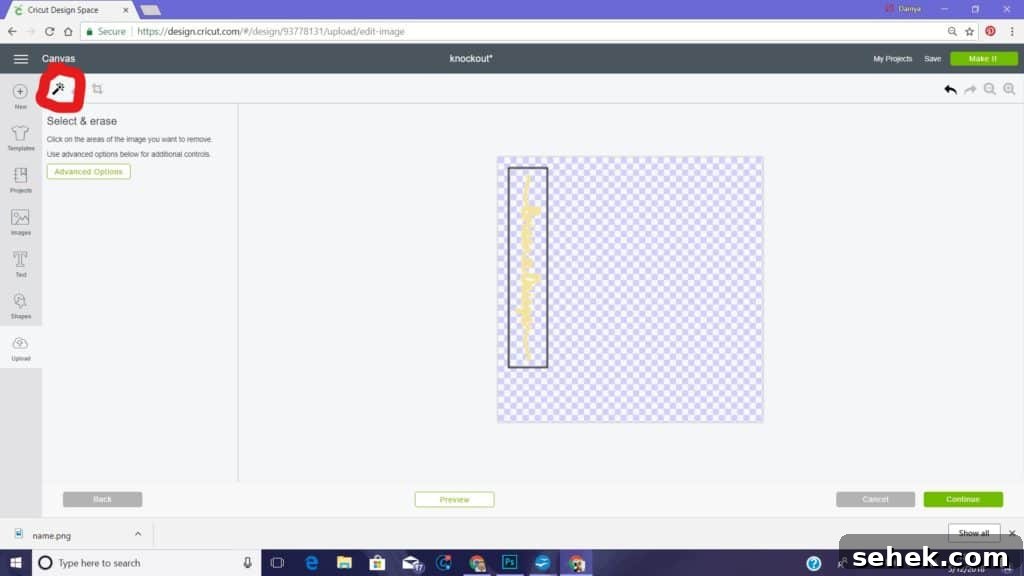
13. On the left, go to Upload and add the image you just saved. Choose Complex and use the eraser/wand tools to remove any background box or stray marks, leaving only the script names. Save the upload as a Cut image.
14. Insert the cleaned cut image onto your canvas. Rotate if needed so it sits horizontally, then resize to fit inside the last name outline. Unlock proportions if necessary to fine-tune width and height.
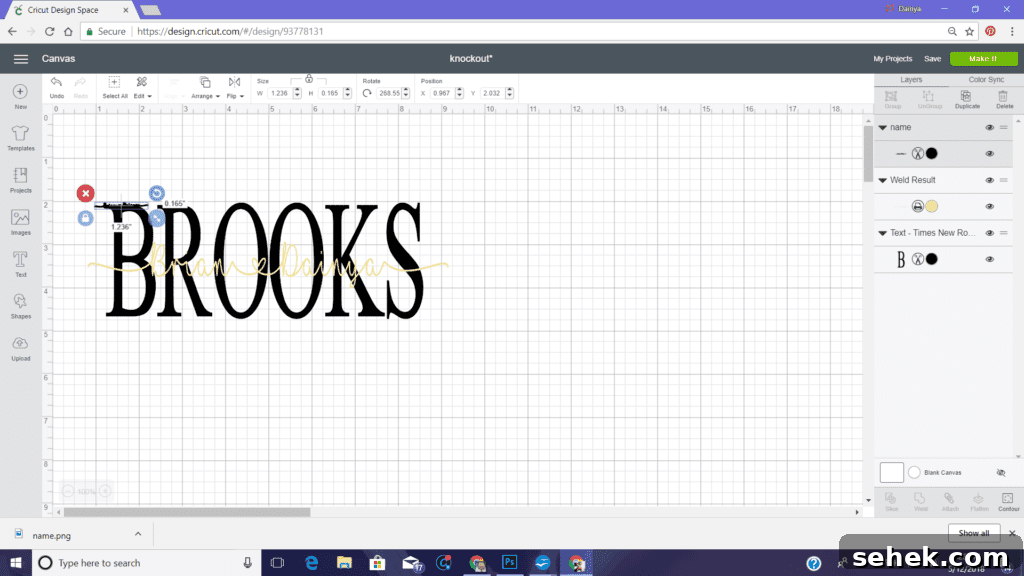
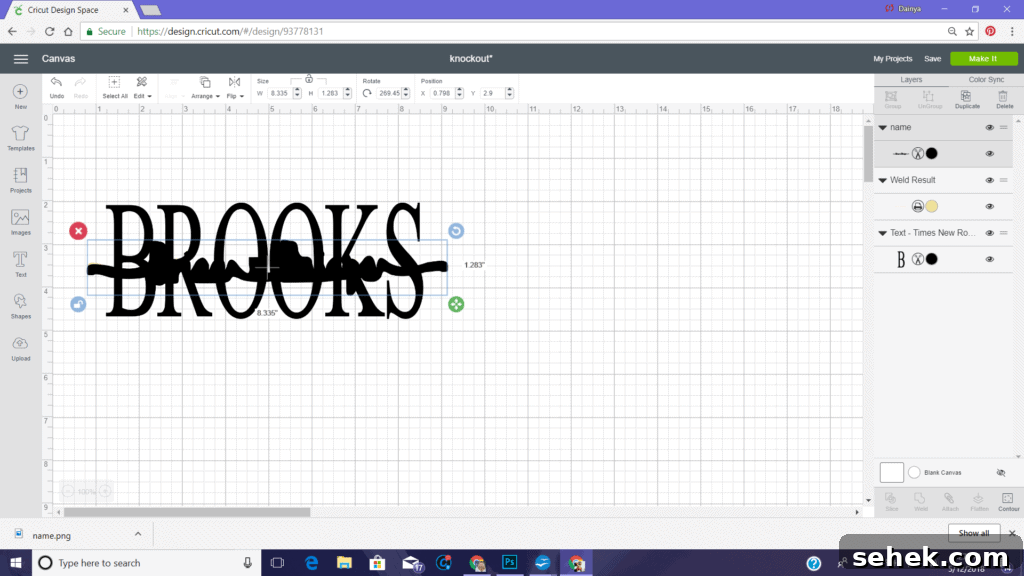
15. Move the original script text off to the side (you can change it back to Cut if needed). Select both the last name and the uploaded script image (hold Control and click each). Then use the Slice tool to cut the script shape out of the last name.
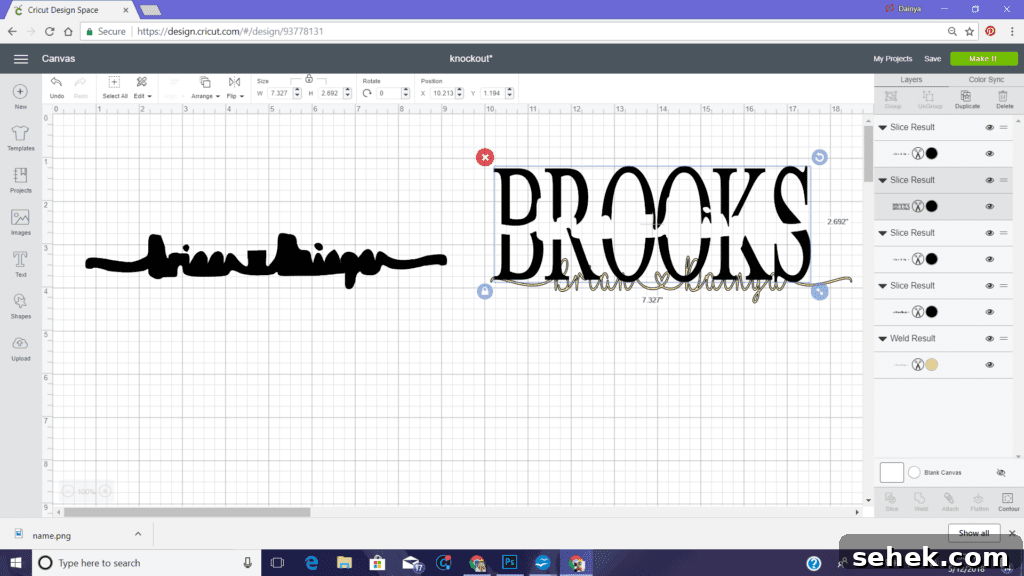
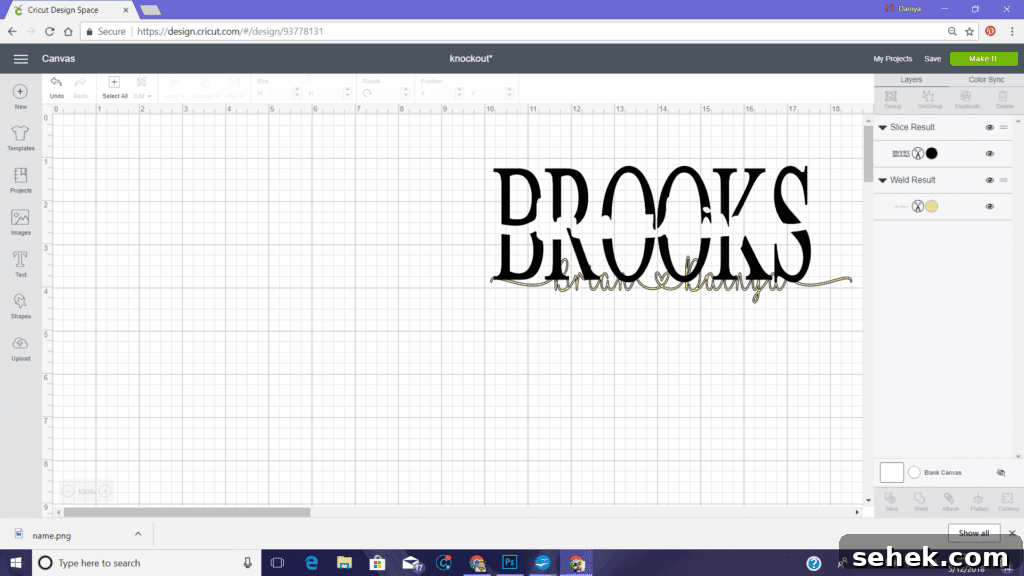
16. Delete the extra sliced layers until only the last name with the script knocked out remains. Reposition and fine-tune the script if needed to achieve the look you want.
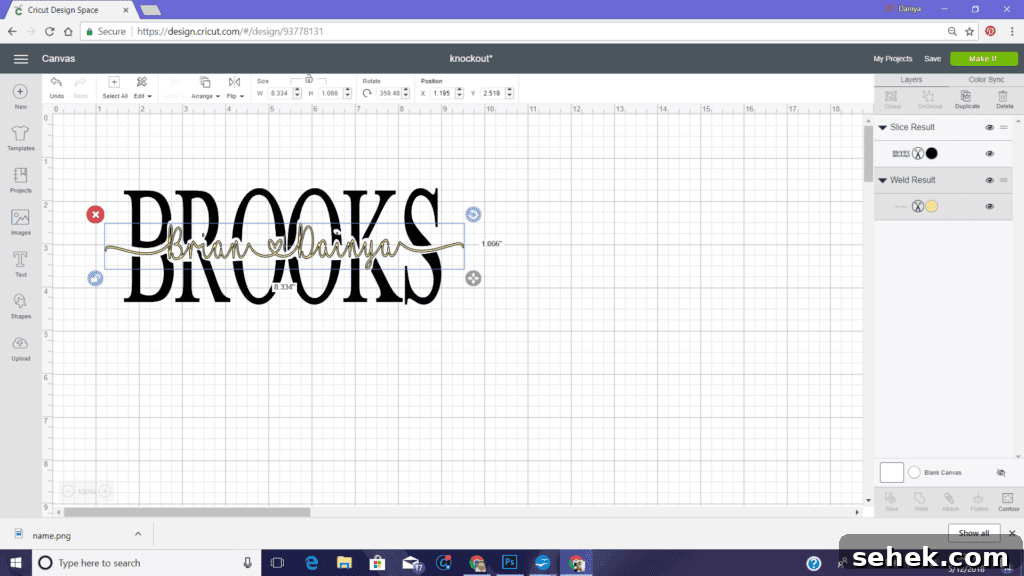
17. Optionally add a “since” date, decorative flourishes, or other text elements. If cutting on sticker vinyl, proceed as normal. If using heat transfer vinyl for shirts, remember to mirror your design before cutting.
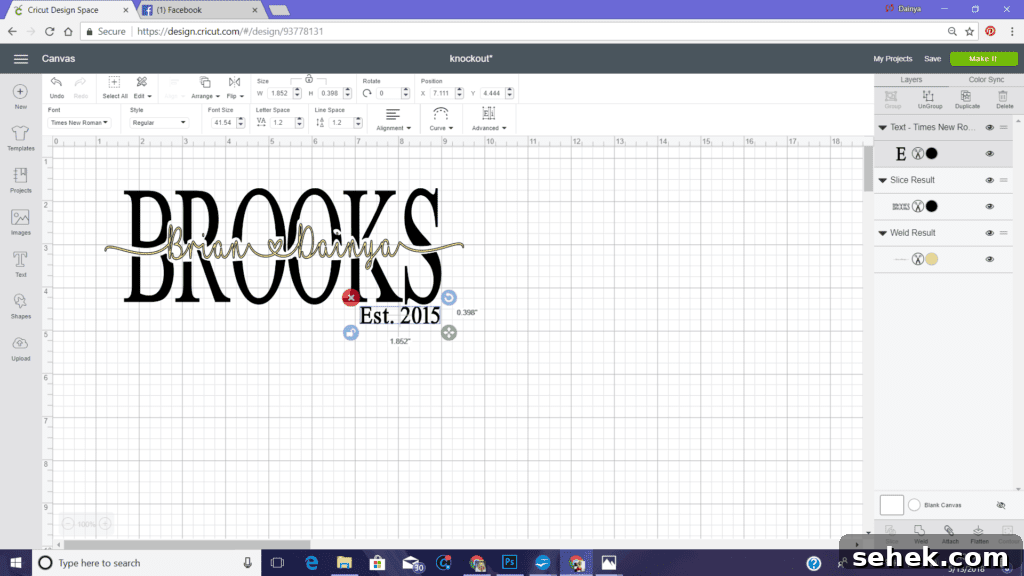
With these steps you’ll end up with a clean, professional-looking knockout name image ready to cut or print for a personalized gift. Experiment with different font combinations, sizes, and placements until you find a style you love.